
How to Master the Apple iPhone 13 Pro’s Super Retina XDR Display Settings
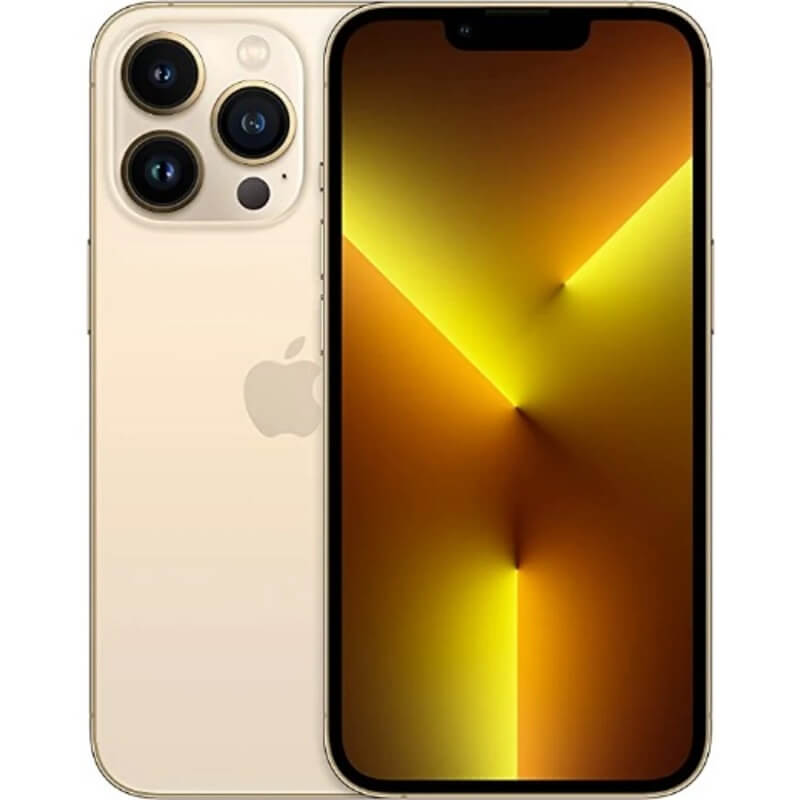
How to Master the Apple iPhone 13 Pro’s Super Retina XDR Display Settings.
The Super Retina XDR display on the iPhone 13 Pro is one of its most powerful features, offering stunning brightness, color accuracy, and smooth visuals. However, to truly get the best experience, you need to optimize its settings intentionally. This guide walks you through how to fine-tune your display for performance, comfort, and visual excellence.
Adjust Brightness and Auto-Brightness for Optimal Visibility
Proper brightness settings improve both viewing comfort and battery efficiency.
Steps to adjust manually:
- Open Settings.
- Tap Display & Brightness.
- Drag the brightness slider to your preferred level.
Steps to enable Auto-Brightness: - Go to Settings.
- Tap Accessibility.
- Select Display & Text Size.
- Toggle Auto-Brightness on.
Auto-Brightness adapts your screen to lighting conditions. This helps reduce eye strain and saves battery life.
Enable True Tone for Natural Color Balance
True Tone adjusts your screen’s color temperature based on ambient lighting.
Steps to enable True Tone:
- Open Settings.
- Tap Display & Brightness.
- Toggle True Tone on.
This feature makes whites look more natural. It is especially useful for reading and long screen sessions.
Activate Night Shift for Eye Comfort at Night
Night Shift reduces blue light, making nighttime viewing easier on your eyes.
Steps to enable Night Shift:
- Go to Settings.
- Tap Display & Brightness.
- Select Night Shift.
- Toggle Scheduled or Manually Enable Until Tomorrow.
- Adjust the color temperature slider.
Warmer tones help reduce eye fatigue and may improve sleep quality.
Configure ProMotion (Adaptive Refresh Rate) for Smooth Performance
The iPhone 13 Pro supports up to 120Hz refresh rate for ultra-smooth scrolling.
Steps to manage motion settings:
- Open Settings.
- Tap Accessibility.
- Select Motion.
- Ensure Limit Frame Rate is turned off.
This allows full use of ProMotion. You get smoother animations and better responsiveness.
Switch Between Light and Dark Mode
Dark Mode enhances readability in low-light conditions and can save battery.
Steps to enable Dark Mode:
- Open Settings.
- Tap Display & Brightness.
- Select Dark under Appearance.
- Optionally enable Automatic to switch based on time.
Dark Mode reduces glare and is easier on the eyes at night.
Customize Text Size and Display Zoom
Adjusting text and layout improves readability and accessibility.
Steps to change text size:
- Go to Settings.
- Tap Display & Brightness.
- Select Text Size.
- Adjust the slider.
Steps to enable Display Zoom: - Open Settings.
- Tap Display & Brightness.
- Select View under Display Zoom.
- Choose Zoomed and apply.
These settings help tailor the interface to your comfort level.
Enable HDR and High-Quality Video Playback
The Super Retina XDR display supports HDR content for richer visuals.
Steps to optimize HDR playback:
- Go to Settings.
- Tap TV or Video Apps.
- Ensure HDR streaming is enabled (if applicable).
- Use apps like Apple TV or Netflix that support HDR.
HDR enhances contrast, brightness, and color depth for a cinematic experience.
Calibrate Color Filters for Personalized Viewing
Color filters can help users with visual preferences or sensitivities.
Steps to adjust color filters:
- Open Settings.
- Tap Accessibility.
- Select Display & Text Size.
- Tap Color Filters.
- Enable and choose a filter.
You can fine-tune intensity and hue. This ensures the display matches your preference.
Manage Always-On Display Behavior
Managing screen wake behavior helps conserve power.
Steps to optimize screen wake:
- Go to Settings.
- Tap Display & Brightness.
- Select Auto-Lock.
- Choose a shorter duration.
This reduces unnecessary screen usage and extends battery life.
Summary
Mastering the Super Retina XDR display on the iPhone 13 Pro is about balancing performance, comfort, and visual quality. By adjusting brightness, enabling True Tone and Night Shift, unlocking ProMotion, and customizing display preferences, you can significantly enhance your daily experience. These simple but powerful tweaks ensure your device looks stunning while remaining easy on your eyes and efficient on battery.
