
How to Enable and Use ProRAW and ProRes for Advanced Photography and Videography
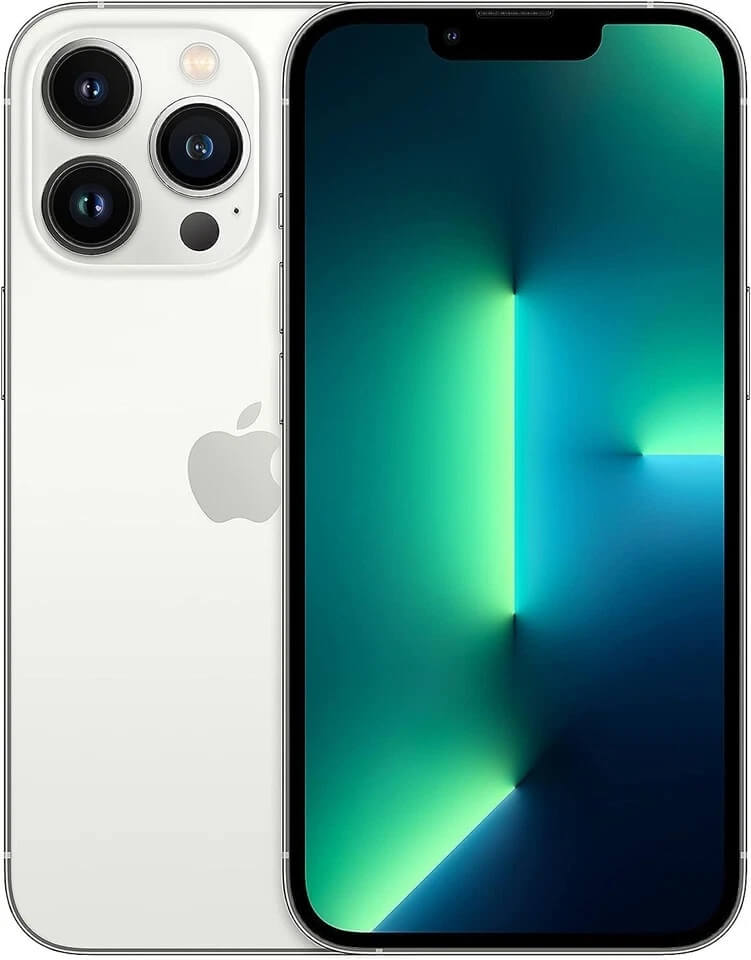
How to Enable and Use ProRAW and ProRes for Advanced Photography and Videography. If you want full creative control over your photos and videos, Apple’s ProRAW and ProRes formats are powerful tools to master. ProRAW enhances image flexibility for editing, while ProRes delivers professional-grade video quality with better color accuracy and less compression. This guide shows you exactly how to enable and use both features for high-end results.
How to Enable ProRAW on Your iPhone
Step 1: Open Camera Settings
Go to Settings.
Scroll down and tap Camera.
Step 2: Enable Apple ProRAW
Tap Formats.
Toggle on Apple ProRAW.
Step 3: Set Resolution (Optional)
Choose between 12MP or 48MP (if supported).
Higher resolution gives more detail but uses more storage.
Step 4: Turn On ProRAW in Camera App
Open the Camera app.
Tap the RAW icon at the top to activate it before shooting.
How to Shoot Photos Using ProRAW
Step 1: Frame Your Shot
Open the Camera app.
Select Photo mode.
Ensure RAW is enabled.
Step 2: Adjust Exposure and Focus
Tap the screen to focus.
Slide the brightness icon to adjust exposure.
Step 3: Capture the Image
Press the shutter button.
Hold steady to avoid blur.
Step 4: Edit for Best Results
Open the image in Photos or editing apps like Lightroom.
Adjust highlights, shadows, and white balance.
How to Enable ProRes Video Recording
Step 1: Access Camera Settings
Open Settings.
Tap Camera, then Formats.
Step 2: Turn On Apple ProRes
Toggle Apple ProRes ON.
Step 3: Choose Resolution and Frame Rate
Select preferred resolution (e.g., 1080p or 4K).
Higher settings deliver better quality but consume more storage.
Step 4: Enable ProRes in Camera App
Open Camera.
Switch to Video mode.
Tap the ProRes button to activate.
How to Record Videos Using ProRes
Step 1: Stabilize Your Device
Use a tripod or hold your phone firmly.
Avoid shaky movements.
Step 2: Set Exposure and Focus
Tap to focus on your subject.
Adjust exposure manually for balanced lighting.
Step 3: Start Recording
Press the record button.
Keep movements slow and controlled.
Step 4: Stop and Review Footage
Tap stop when done.
Preview your video for clarity and color accuracy.
Storage and Performance Tips
Step 1: Monitor Storage Space
Go to Settings > General > iPhone Storage.
Ensure you have enough space before shooting.
Step 2: Use External Storage (If Available)
Connect supported external drives for ProRes recording.
This is useful for long video sessions.
Step 3: Transfer Files Regularly
Move files to a computer or cloud storage.
This prevents storage overload.
Step 4: Optimize Editing Workflow
Use professional editing software.
Work with original files for best quality output.
When to Use ProRAW and ProRes
Step 1: Use ProRAW for Photography
Ideal for landscapes, portraits, and low-light shots.
Best when you plan to edit extensively.
Step 2: Use ProRes for Videography
Great for content creation, filmmaking, and interviews.
Perfect when color grading is required.
Step 3: Avoid for Casual Use
Standard formats are better for quick sharing.
They save storage and processing time.
Summary
ProRAW and ProRes unlock professional-level photography and videography on your iPhone. Enabling them is simple through camera settings, but using them effectively requires attention to storage, lighting, and editing workflows. Use ProRAW when you need detailed photo editing flexibility, and choose ProRes for high-quality video production. When used correctly, both formats significantly elevate your content quality and creative control.
